
Get the landing-page helper block
Make sure the creative's landing URL carries the click id, then generate the landing-page helper block from the campaign's Conversion tracking code window — for one action or a whole funnel — and pick the ad-serving domain it is built for.
What it is and why
The landing-page helper block is generated on the campaign, from the Snippet tab of the Conversion tracking code window, and it only ever reads a click id that the ad server put into the landing URL. This page is the first stage of Install the landing-page helper: making sure the click id arrives, then producing the block for one action or a whole funnel. Reading the block and installing it on the advertiser’s site is on Read and install the landing-page helper block.
Example. The campaign “Spring Prospecting CPC” has Add the click id to landing page
URLs switched on, so its image creatives land visitors on
https://shop.example/product?easclid=<click id>. On the campaign’s Conversion actions card you
select the purchase action, click Conversion tracking code, pick ads.example.com as the
ad-serving domain and copy the block from the Snippet tab; the advertiser’s developer gets one
paste and one easq('track', 'purchase') line for the receipt page.
Typical scenarios
| You want | Do | Where |
|---|---|---|
| A block that tracks one action | Select the action’s row, click Conversion tracking code, open the Snippet tab | the campaign’s Conversion actions card |
| One block that fires registration → first_deposit as separate steps | Select the funnel on the card’s Funnels tab instead; one track line per step comes out | the campaign’s Conversion actions card → Funnels |
| A block for a creative whose landing page lives inside its own markup (HTML Code, Template, native, OpenRTB) | Write ?easclid=$$CLICK_ID$$ into the landing URL by hand first | the creative’s landing URL |
Step by step
Before you start: the landing URL must carry the click id
Nothing in the block can create a click id; it can only read one that arrived. You need a
conversion action switched on for the campaign (Create and edit conversion
actions), access to every page of the advertiser’s site — not only the
conversion page — and a landing URL on the creative that carries $$CLICK_ID$$:
https://yourlanding.com/product?easclid=$$CLICK_ID$$Add the click id to landing page URLs on the campaign’s Conversion actions card does that
for you wherever the click-through is built out of the creative’s own Link field: Local File
and External File images, Local Video and External Video and the VAST tag creatives
that carry a <ClickThrough>, the email-placement click, and both click-through URLs a
click-through placement hands out — including the hidden-landing-page one, which resolves the
link at click time. On HTML Code, Template, native and OpenRTB creatives the landing page
lives inside markup somebody else wrote, where the toggle has nothing to rewrite, so there the
macro has to be written into the landing URL by hand. A URL that already carries the macro (or an
easclid= parameter) is left exactly as written, so the two cannot collide. $$ACTION_DATA$$ is
the same token under its older name and still works. See Macros reference.
Get the block
-
Go to Account → Advertisers → advertiser → campaign and open the Conversion actions card — its own switch has to be on. On a campaign that already has actions it will be.
-
Select exactly one action row and click Conversion tracking code. The grid takes one row at a time, so the block you get tracks that one action and carries one
easq('track', …)line. For a whole funnel in one block, switch to the Funnels tab on the same card instead, select the funnel and click Conversion tracking code: that block names every step in itsactionsdictionary and carries onetrackline per step, in funnel order. The tab is not shown until at least one funnel has been saved; see Save a conversion funnel and report on it. -
Pick the Ad-serving domain above the tabs — the block is built for that host, and the conversion call is sent there. Picking one saves it onto the campaign then and there.
-
Open the Snippet tab and copy the block with the button in the corner of the code box.
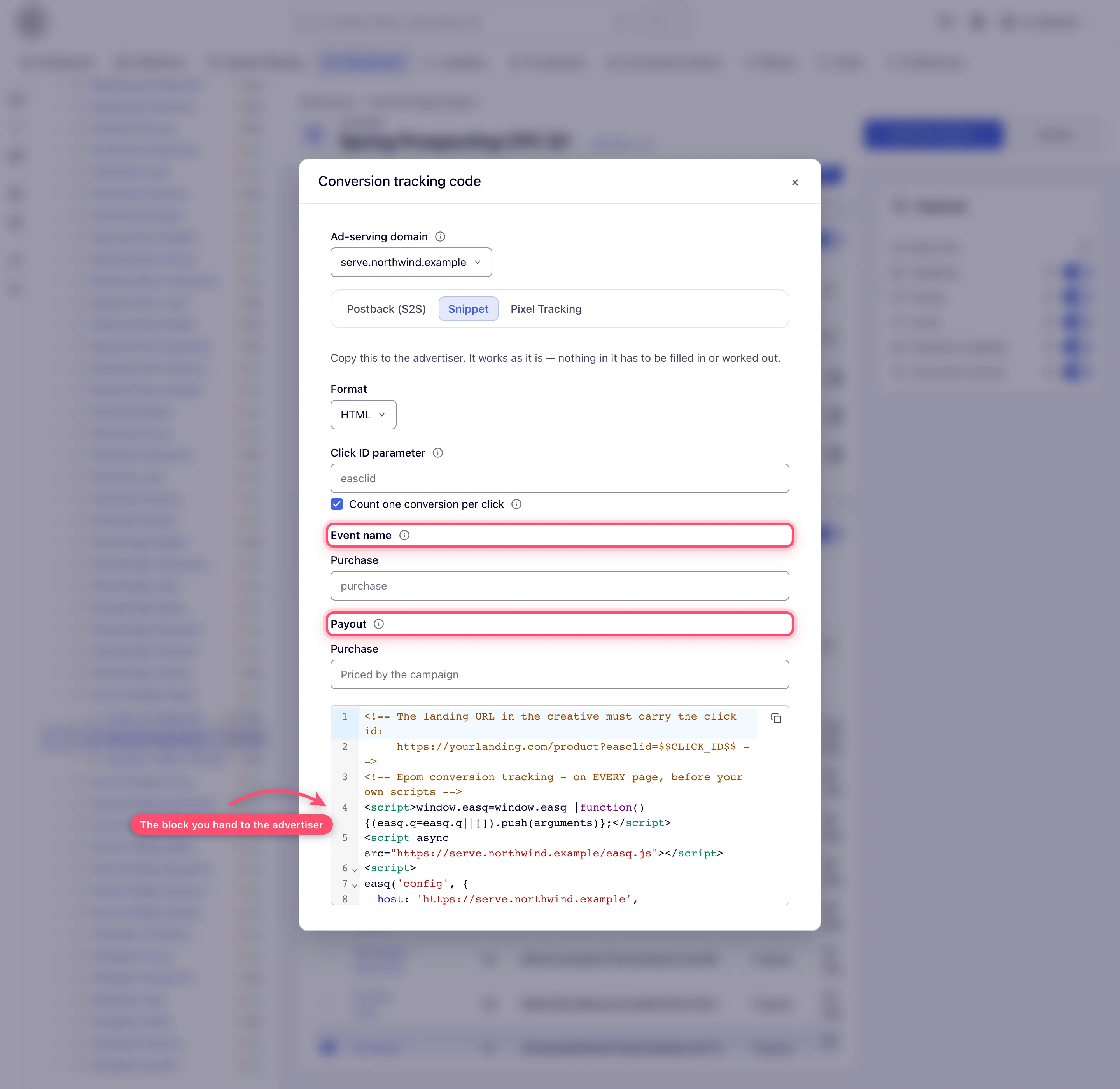
The tab’s settings — Format, Click ID parameter, event names, payout, and the Count one conversion per click checkbox — are described in Get the pixel and S2S tracking code and Snippet tab options. What comes out is complete: there is nothing in the block for the integrator to fill in — with one exception, the
{{…}}variable names in the optional alternative tag of the Google Tag Manager format, covered under Install it — Google Tag Manager.
Next: Read and install the landing-page helper block.
Caveats and exceptions
The Snippet tab does not warn you when the landing URL is not carrying a click id. It cannot see the creative. The generated block opens with a comment restating the requirement, and that comment is the only reminder anyone gets — leave it in place when you hand the block over.
Picking an Ad-serving domain saves it onto the campaign. It needs Action Tracking: Code and Update on the campaign, and every tracking code that campaign issues from that moment carries the new host: this block, its pixel codes, its postback URLs. It is not a way to look at an alternative host — and a block already installed at an advertiser goes on naming the old one. On the global Account → Conversion Actions page there is no campaign to save it against, and the choice is forgotten when the window closes.
Changing the ad-serving host orphans every click id already stored, and nothing avoids it.
The storage name is derived from the host, so a block pointed at a new one starts with an empty
jar and reports no-clickid for every visitor who landed before the change — the same whether the
host line was edited by hand in the installed block or the Ad-serving domain was changed in
the tab. What the tab buys is not those click ids: it saves the host onto the campaign, so the
block and every other code that campaign issues keep naming one domain, where a hand-edited
host leaves the page posting to a domain the campaign never issued a code for. Change the host
once, and expect a gap the length of the advertiser’s conversion lag.
The caveats that apply to the helper as a whole — who can do this, what the block stores and where the stored click id is readable — are on Install the landing-page helper.
Not working?
| Symptom | Check | Where |
|---|---|---|
Every conversion reports no-clickid | The landing URL is not carrying easclid=: the creative lacks $$CLICK_ID$$ and the toggle cannot reach it (HTML Code, Template, native, OpenRTB), or the toggle is off. | the creative’s landing URL; Add the click id to landing page URLs on the campaign card; easq('debug') on the landing page |
no-clickid only for visitors who landed before a change | The ad-serving host changed and the storage name with it. Expect a gap the length of the conversion lag. | the Ad-serving domain picker; the host line in the installed block |
| The Snippet tab is missing | You opened the window from Account → Conversion Actions (postback tab only), or your role lacks Action Tracking: Server-to-Server. | open it from the campaign’s Conversion actions card; User roles |
| The Funnels tab is missing on the campaign card | No funnel has been saved yet. | Save a conversion funnel |
What goes wrong once the block is on the site is on Read and install the landing-page helper block and Install the landing-page helper; for the reason codes and the console checks, go to Check and troubleshoot the landing-page helper.
Reference
The three parts of the block, in brief, and the two companion pages are listed under Reference on the hub; the Snippet tab’s fields are on Snippet tab options.
Related pages:
- Install the landing-page helper
- Read and install the landing-page helper block
- Landing-page helper reference
- Check and troubleshoot the landing-page helper
- Get the pixel and S2S tracking code
- Snippet tab options
- Create and edit conversion actions
- Save a conversion funnel and report on it
- Macros reference
