
Set up a click-through placement
Track clicks on a text link, sponsorship or off-platform media you cannot tag — link image or video creatives, open Show tracking URLs, pick the six URLs per creative or export them as CSV, and hand the partner the click-through URL or the click / impression pixel, with the caveats on rebuilt URLs, masked shares and the pixel's counting.
What it is and why
A Click-through placement carries no ad markup at all — it exists to track clicks. You link image or video creatives to it, and each gets a set of tracking URLs: a click-through URL that logs the click and forwards to the landing page, and click and impression pixels for partners who can only request an image. The other specialist types are on Application, email and click-through placements.
Example. A publisher sells a sponsored text link on a partner’s site. It is a Click-through Placement with one image creative linked: the partner sends visitors to its click-through URL, which logs the click and forwards to the landing page, so the partner’s clicks show in reports next to the publisher’s app and newsletter placements.
Typical scenarios
| You want | Create | Then hand over |
|---|---|---|
| Clicks on a text link, sponsorship or off-platform media you cannot tag | Click-through Placement with image or video creatives linked | Per creative: the click-through URL where they send the visitor, or the click / impression pixel where they can only request an image |
| Tracking URLs for 20 creatives in one go | The same, then Export on the tracking-URLs grid | A CSV with the eight columns |
Step by step
A click-through placement records clicks and redirects — useful for text links, sponsorships or off-platform media you can’t tag with markup. Start from a saved placement of this type (create one).
-
Create and save the placement (name is essentially the only field — there is no size and no generated ad tag).
-
Link creatives to the placement — the tracking URLs are per creative, so an unlinked placement has none. Only image and video creatives (local or external) produce them; an HTML, template, native or OpenRTB creative linked here is skipped.
-
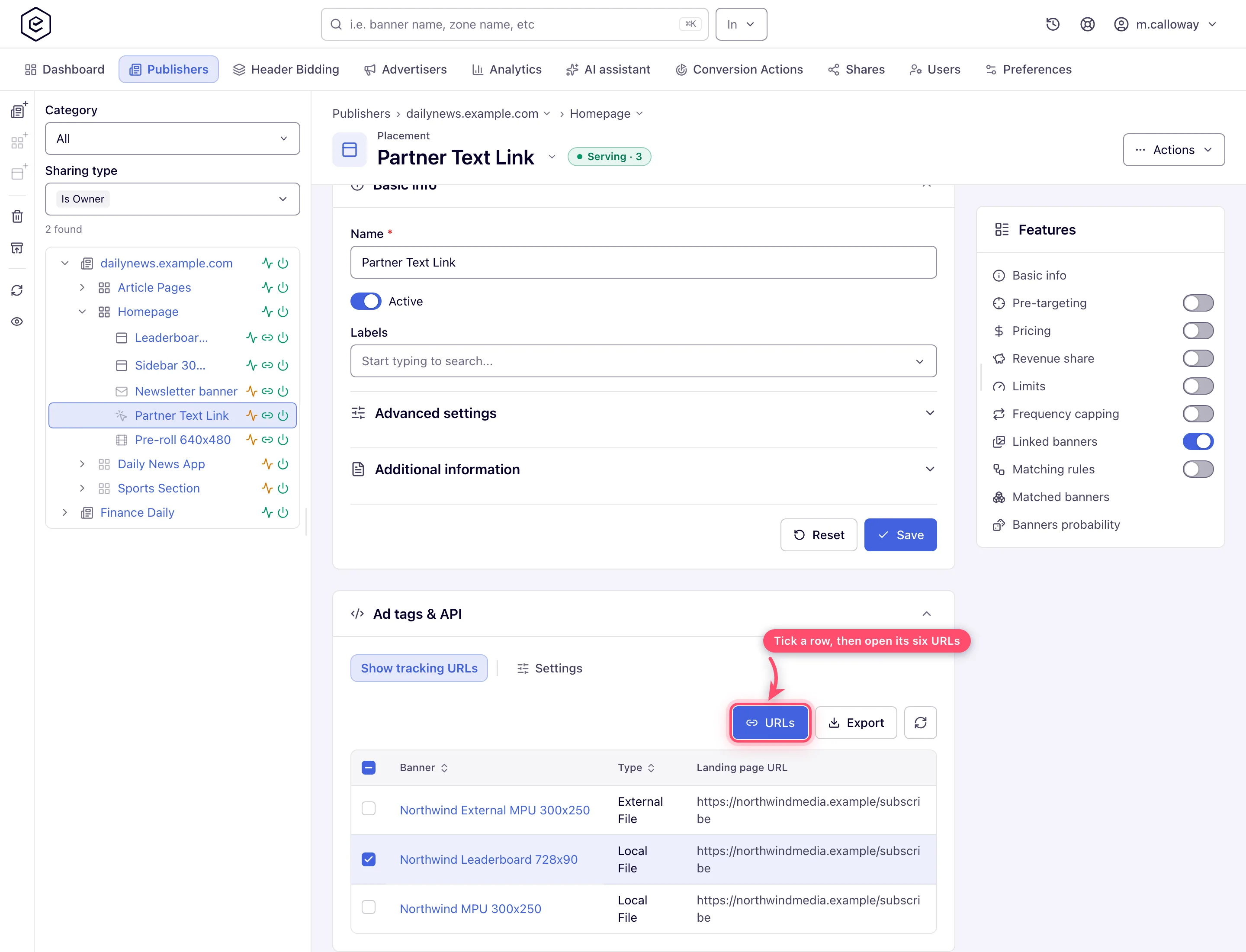
Open the Ad tags & API card. On this type it carries no tag tab — it opens on Show tracking URLs, a grid of the linked creatives with their Type and Landing page URL.
-
Tick a row and click URLs — or double-click it — to open that creative’s six URLs, each on its own copyable field: Landing page URL, Creative URL, Impression URL, Click-through URL, Click-through URL (hidden landing) and Click URL. The dialog renders the creative itself above them and links to its Preview, so you can confirm you are copying the right row’s URLs. Export downloads the same eight columns as CSV — the rows you ticked, or every row when you ticked none.
-
Give the third party the URL that matches what they can fire: a click-through URL where they send the visitor (it logs the click and forwards to the landing page), the click or impression pixel where they can only request an image.
Caveats and exceptions
The classic interface has no tracking-URLs tab. The above is the new interface. The classic placement page keeps a Show tracking URLs button in the Basic-info form’s button row, beside Reset and Save, which opens the same list as a separate page. Both are built from the same URLs.
A click-through placement’s Ad tags & API card exists without a single code tab, and the copy-ad-tag quick action in trees/grids still answers “This placement type has no ad tag” — correctly, since there is none to copy. The card shows even on shares where the rest of the form is read-only; the Settings tab beside it is the part that disappears when you cannot edit.
The tracking URLs are rebuilt when the placement’s Domain, Protocol or default parameters change — all set on the Settings tab of the same card — so a URL already handed to a partner is not necessarily the URL the tab shows today. Re-issue after a domain change.
On a share carrying Mask campaigns, the rows keep their URLs but lose the identifying parts — you can still hand out a tracking URL for a creative whose advertiser you are not entitled to see.
The click pixel and the click-through URLs count every request they receive. There is no ad request behind them to check a repeat against, and the click-fraud throttle does not apply, so have the partner fire the pixel once per real click — not on every page view. Requests from known bots are not counted by the click pixel. Before release 153 the click pixel answered with its image but recorded nothing; those clicks cannot be recovered.
Who can do this, and why there is no Preview button, are on Application, email and click-through placements.
Not working?
| Symptom | Check | Where |
|---|---|---|
| The tracking-URLs grid says No linked image or video banners yet | No creative is linked, or the linked ones are HTML, template, native or OpenRTB — only image and video creatives produce URLs | The Linked Banners card; the creatives’ types |
| The copy-ad-tag quick action says This placement type has no ad tag | Correct for Click-through and for Native placements | Use the tracking URLs (or the API URL) instead |
| A partner’s click counts look inflated | They fire the click pixel on every page view; it counts every request, with no throttle | The partner’s integration: once per real click |
| Clicks before release 153 are missing | The click pixel recorded nothing then; they cannot be recovered | — |
| A URL you handed out no longer matches the tab | Domain, Protocol or a default parameter changed on the Settings tab | Re-issue the URLs |
The symptoms common to all three types (Preview answers Not Supported, the Settings tab missing on a share) are on Application, email and click-through placements.
Reference
The six URLs and when to fire each: Click-through tracking URLs on the hub; the REST call that answers the tab and how a creative is created and linked for this type: Over the API.
