
Create an advertiser
Create an advertiser in six steps — name, Active, categories, the Advanced settings and Additional information sections, Save — and what appears after the first save, card by card.
Creating an advertiser takes a name; everything else — categories, the advertiser domain, the private flag, contact details — is optional, and the feature cards (targeting, limits, capping, shares and the rest) appear only after the first save. What an advertiser is and the settings it carries are on Create and edit an advertiser.
Example. A network signs Summit Ridge Outdoor, which will run 4 campaigns over the year.
One advertiser Summit Ridge Outdoor with Category Sports & Recreation, Advertiser domain
summitridge.example and the client’s contact email takes one pass through the form; after
Save the Limits card takes the $12,000 total budget and Frequency capping the 3 impressions
per day per visitor that every campaign under it inherits.
Typical scenarios
| You want | Do | Where |
|---|---|---|
| A new client set up with one pass through the form | Name, Category, Email under Additional information, Save | Account → Advertisers → New advertiser |
| Buyers to see the brand’s domain on every bid for this advertiser | Advanced settings → Advertiser domain = the brand’s site, e.g. acme.com — never the click tracker | Needs Set Advertiser Domain (OpenRTB adomain) on your role |
| An advertiser nobody else in the network sees in trees and reports | Advanced settings → Private | Advertiser edit page |
| The advertiser’s figures to stay “preliminary” for the last 3 days | Analytics finalization policy = Last N Days, Days for confirmation = 3 | Advanced settings, saved advertiser only |
Step by step
-
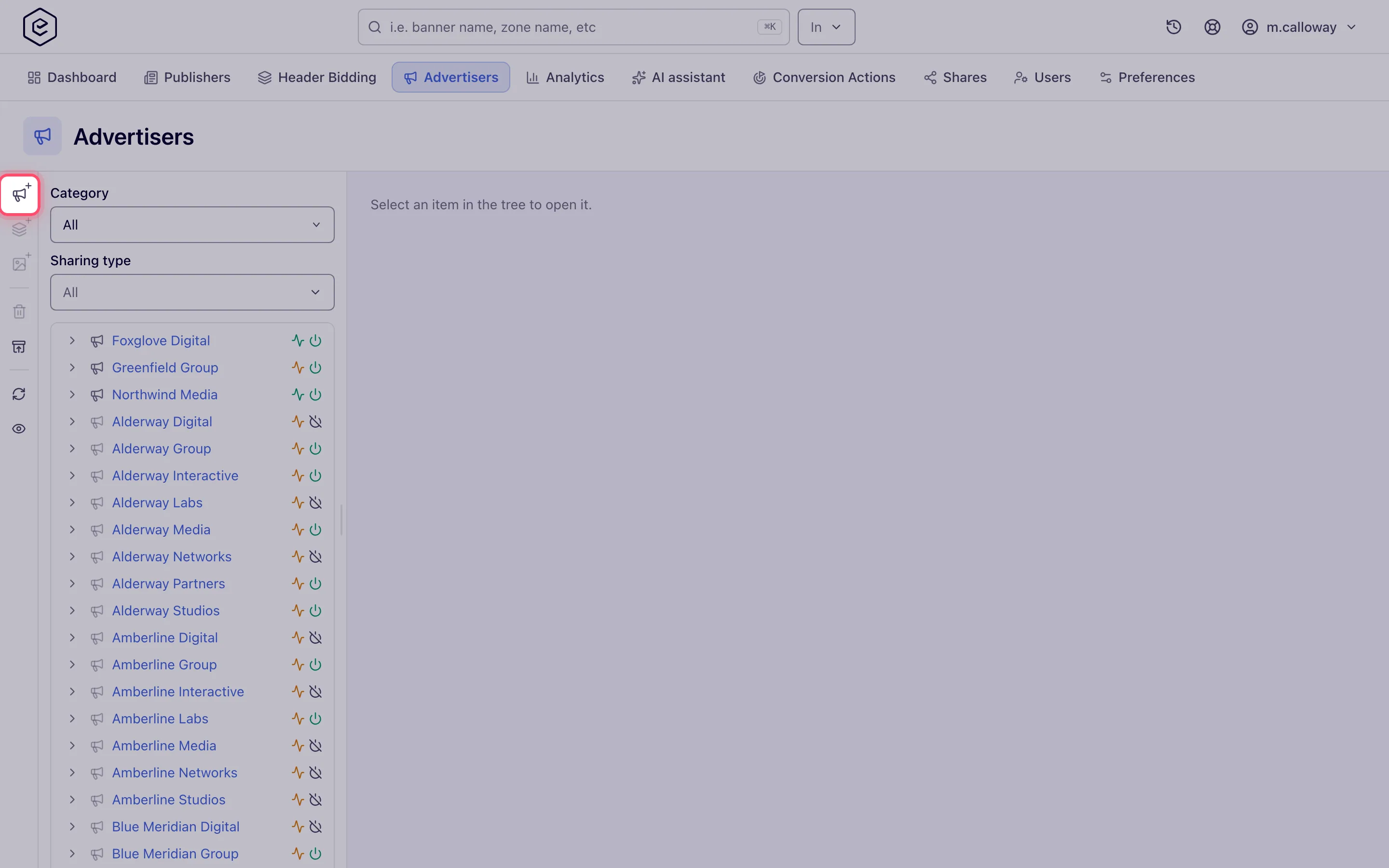
Go to Account → Advertisers and click New advertiser — the top button of the left action rail. In grids view the same action is a New advertiser… button above the grid (switch under your username → Trees / Grids).
-
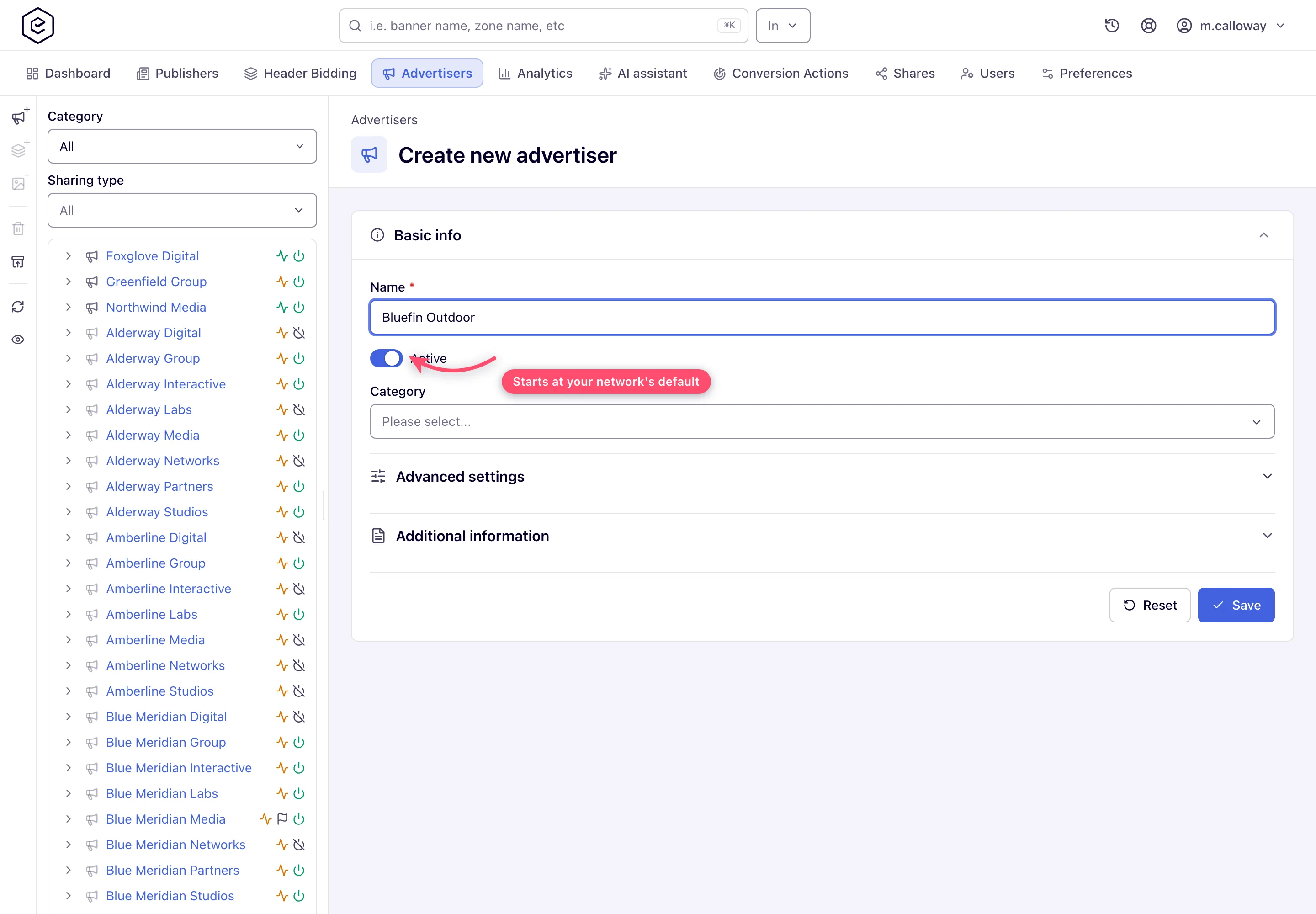
Fill in Name — the only required field, up to 128 characters — and check the Active toggle. It is already on unless your network’s default activity status says otherwise.
-
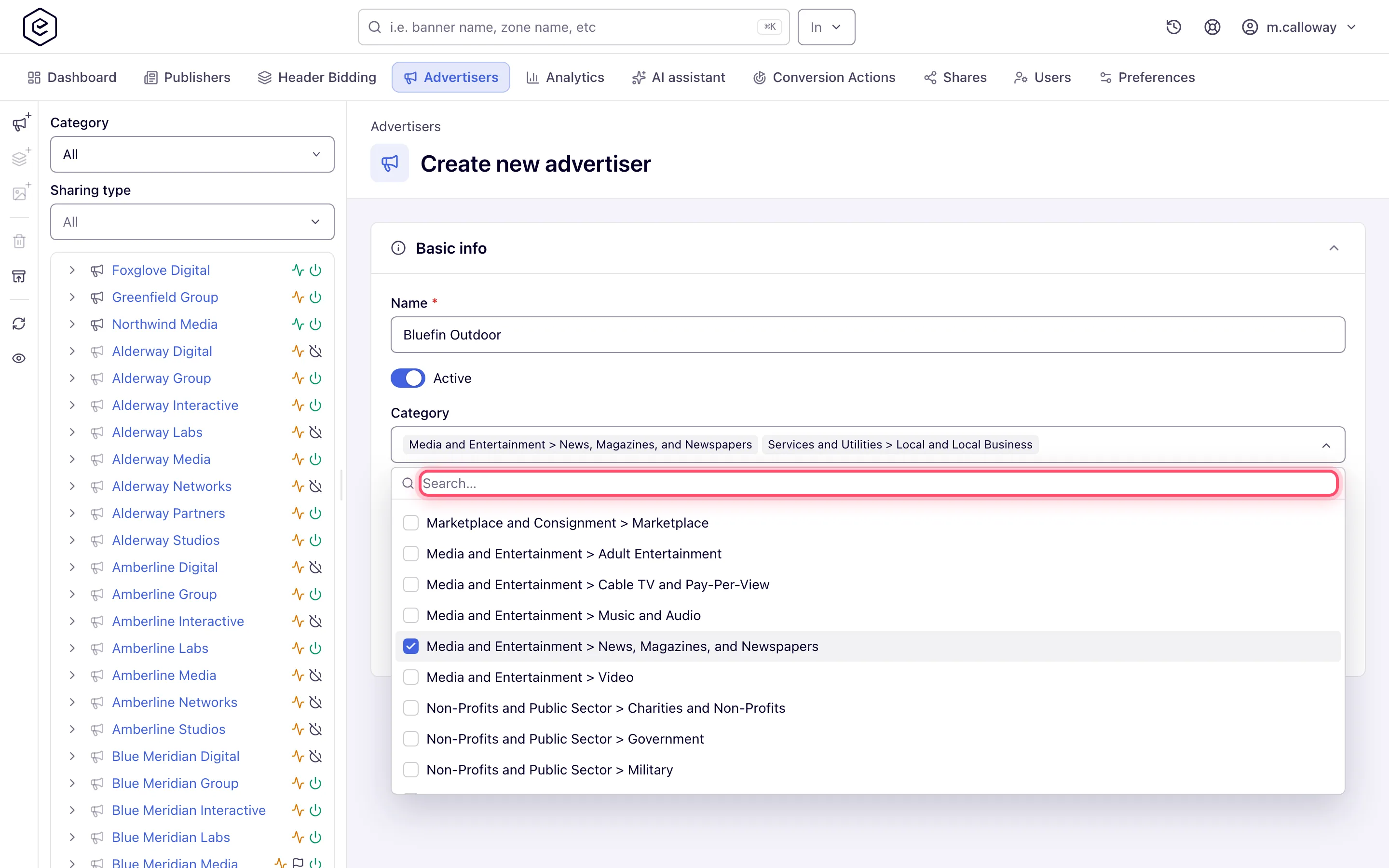
Optionally pick one or more Categories: a searchable checkbox list, each tick becoming a chip above it. Categories feed matching rules and reporting. If the field is not on the page, ask your network admin for Advertisers Categorization.
-
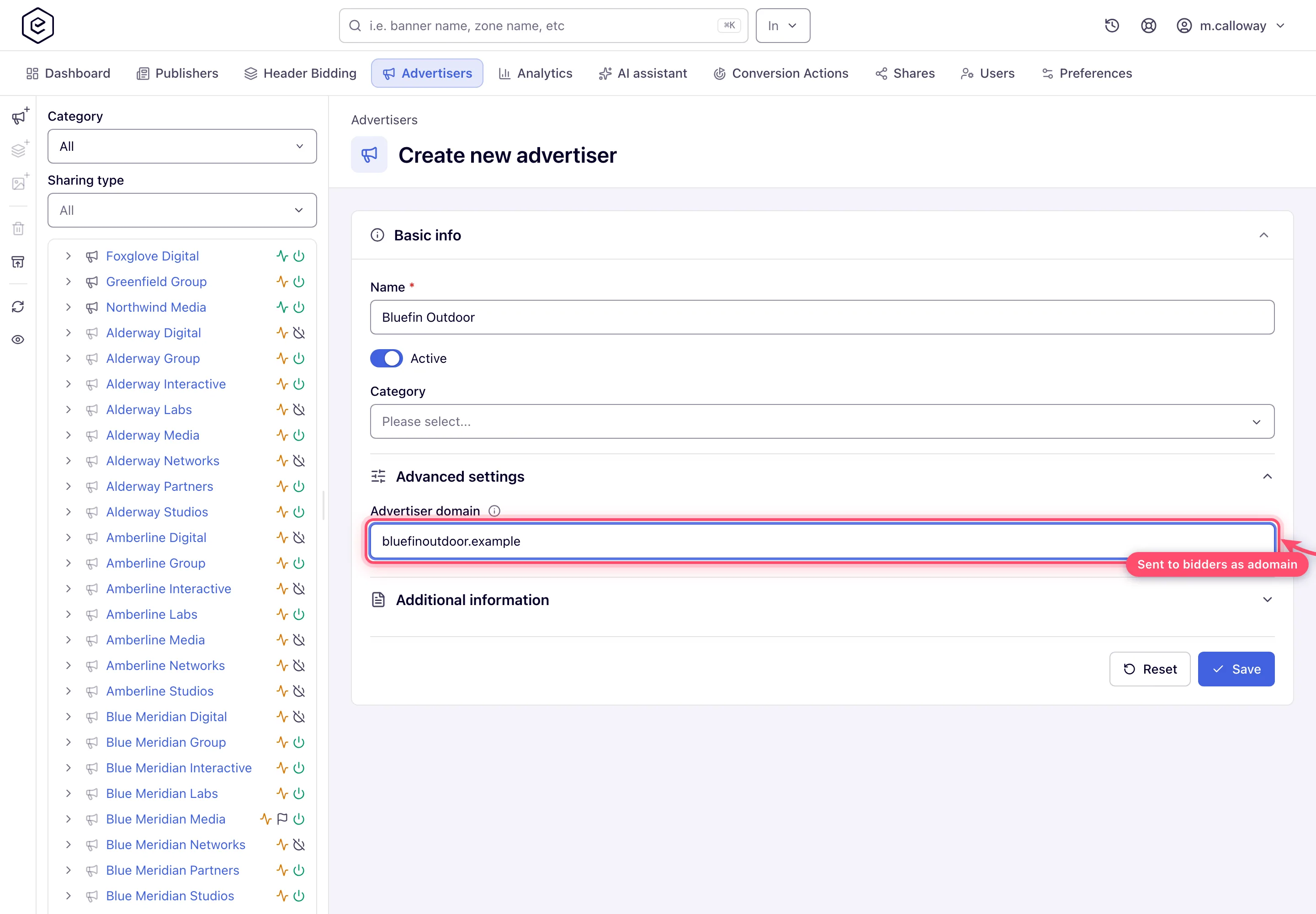
Open Advanced settings for the Advertiser domain or the Private flag. Each of the section’s settings has its own permission; with none of them there is no Advanced settings row at all. The Analytics finalization policy also lives here, but only on a saved advertiser.
-
Open Additional information for Contact name, Email and Description. Fill in the email: it pre-fills the statistic user’s email if you create one later.
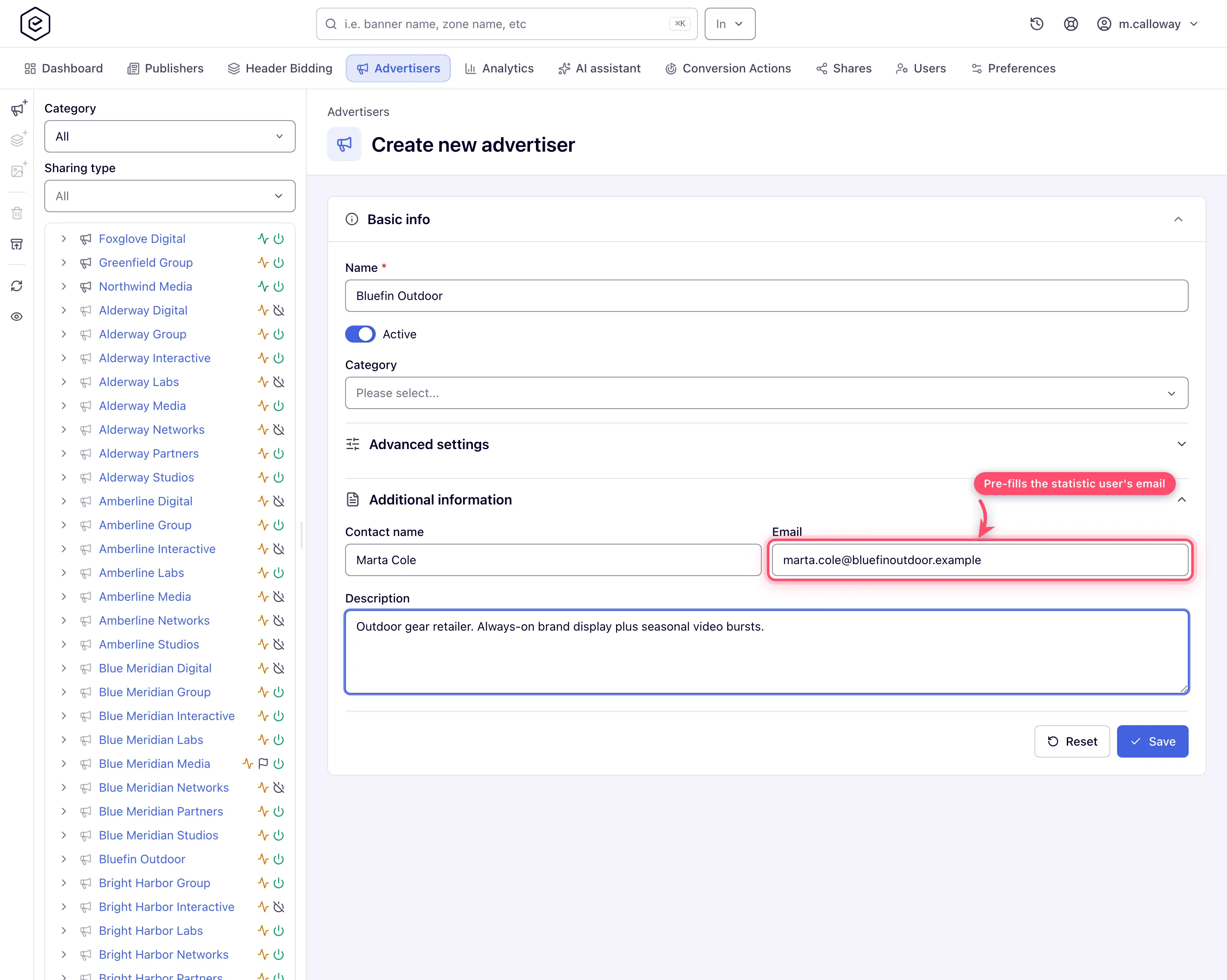
-
Click Save (toast Advertiser saved). You land on the full edit page: the header gains Add new campaign and an Actions menu, the feature rail appears on the side, and Advanced settings gains the Analytics finalization policy. The campaign count reads zero and a setup nudge offers Create campaign until the first campaign exists.
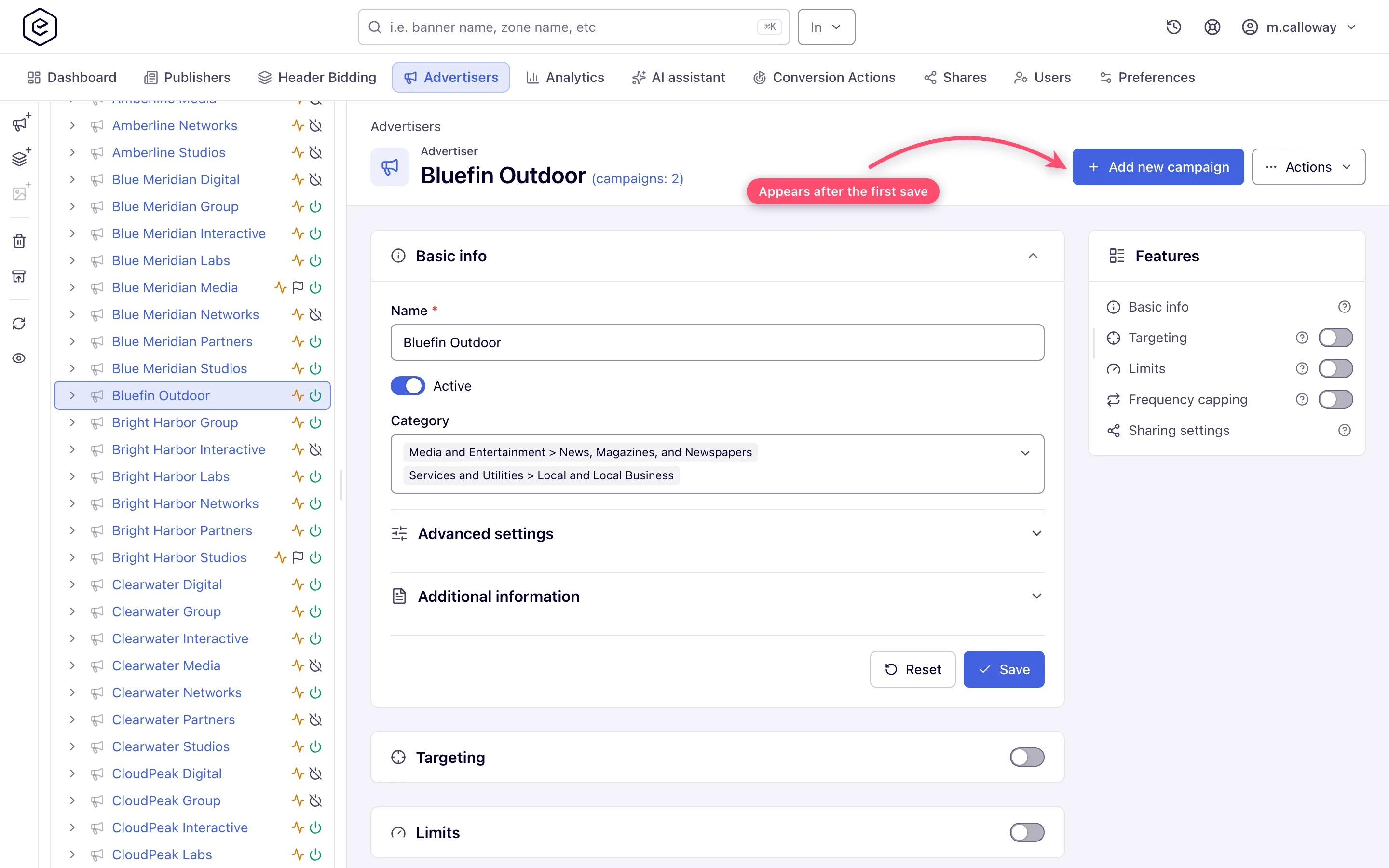
After the first save — the feature cards
In page order; each card can be switched on/off from the side rail when you can edit it. Which cards you see depends on your role — see User roles.
| Card | What it does |
|---|---|
| Basic info | The fields above, now with the Analytics finalization policy and a read-only Created date. |
| ↳ Demand partner ads.txt / app-ads.txt lines (a subsection of Basic info, above Additional information) | Only for an advertiser that is really a demand partner selling through its own tag — an ad network or exchange tag, a DSP seat: the ads.txt lines it asks publishers to carry. ads.txt lists sellers, so an ordinary advertiser that only buys has none. Paste the block as given; it is parsed and refused line by line if malformed, or if a line sets OWNERDOMAIN, MANAGERDOMAIN, CONTACT or SUBDOMAIN, which belong to the site’s owner and the White Label page. Each line can be removed; one stored before that rule shows Not published. Every site where one of the advertiser’s active banners runs adds them to its ads.txt block. Collapsed, its header counts the lines and any that are not published. Needs the Advertiser ads.txt / app-ads.txt Lines (demand partners) permission: without it the subsection is absent, and read-only shows the lines under a Read-only marker. A partner with no advertiser here, such as a header-bidding bidder, goes in the site’s Additional ads.txt lines instead. See setup by scenario. |
| Targeting | Advertiser-level targeting rules applied to all its campaigns. See Add targeting. |
| Price adjustment rules | Adjust gross prices by condition; advertiser rules apply before campaign and banner rules. See Price adjustment rules. |
| Limits | Impression/click/conversion/budget limits across all campaigns. See Limits. |
| Per conversion action limits | Limits per individual conversion action. See Action limits. |
| Frequency capping | Advertiser-level frequency capping (all campaigns combined). See Frequency capping. |
| Matching rules | Category/label rules that auto-pair this advertiser’s demand with inventory. |
| Matched placements | Read-only list of placements the rules currently match. Appears only while Matching rules is showing. |
| Payments | The advertiser’s payment records. |
| Sharing settings | Share this advertiser with other users. See Shares. |
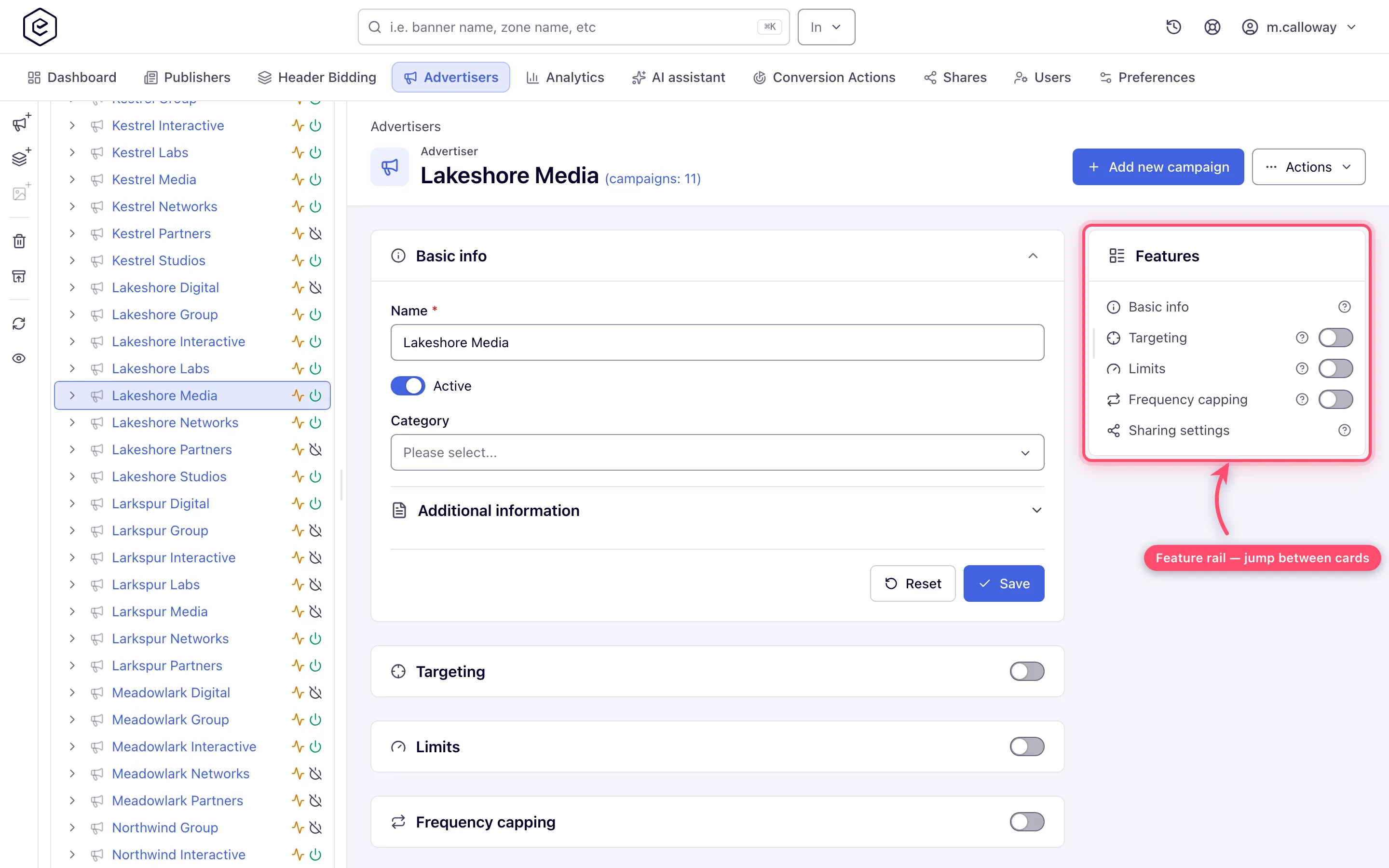
Caveats and exceptions
The create form is Basic info only. Targeting, limits, capping, payments, shares and every other card appear after the first Save. The Analytics finalization policy needs a saved advertiser too, so even with the permission it is only on the edit page.
Unsaved edits are kept in your browser. The next visit shows “You have unsaved changes from a previous visit.” with Restore and Discard — a stale draft is the usual reason a card opens with text you do not recognise.
Zero campaigns means nothing serves. The setup nudge with Create campaign stays until the first campaign exists.
Category may be required or locked by your role. Locked reads “All without category”; required refuses a save with none (“You must provide at least one category”).
The caveats that apply to every advertiser — who can do this, masked shares, the advertiser domain — are on Create and edit an advertiser.
Not working?
| Symptom | Check | Where |
|---|---|---|
| No New advertiser button | You are in grids view (button above the grid), or your role cannot create advertisers | Username menu → Trees / Grids; User roles |
| No Category field | Role lacks Advertisers Categorization | Network admin |
| No Advanced settings row | None of its three permissions on your role | Network admin |
| No Analytics finalization policy | You are on the create form; it appears after the first save | Save, then Advanced settings |
| A card is missing from the rail | Your role or share does not include it | Which permission is missing? |
The rest of the list — the advertiser domain, stale drafts, the header actions — is on Create and edit an advertiser.
Reference
Every field with its control, default and permission is on Advertiser reference: Basic info · Advanced settings · Additional information · Advertiser domain. The essentials are in the hub’s Reference.
